If you’re performing an Azure Local deployments on an OEM premier solution, you might run into scenarios where your OS images are preinstalled and a bit outdated. Don’t worry—Microsoft has built-in mechanisms to handle this smoothly during the Arc registration process. In this post, I’ll break it down step by step, drawing from the official Azure documentation.
What Happens During Azure Arc Registration?
Azure Arc registration is a key step in setting up your Azure Local environment, where your system connects to Azure services ideally via an Arc gateway. Part of this process involves verifying the OS image against the current release baseline. If the image is outdated or unsupported, Azure Local doesn’t just throw an error—it automatically updates it for you. This ensures compatibility and security right from the start.
You can even customize this by using the optional TargetSolutionVersion parameter to specify a particular version you’d like to target. The update process usually takes about 40-45 minutes, and yes, it requires a system reboot. While it’s happening, you’ll see the registration status listed as Update: InProgress.
When the update is installed the server will be rebooted. If using PowerShell, you then need to re-run the ‘Invoke-AzStackHciArcInitialization’ command and you will see that the update has been isntalled.
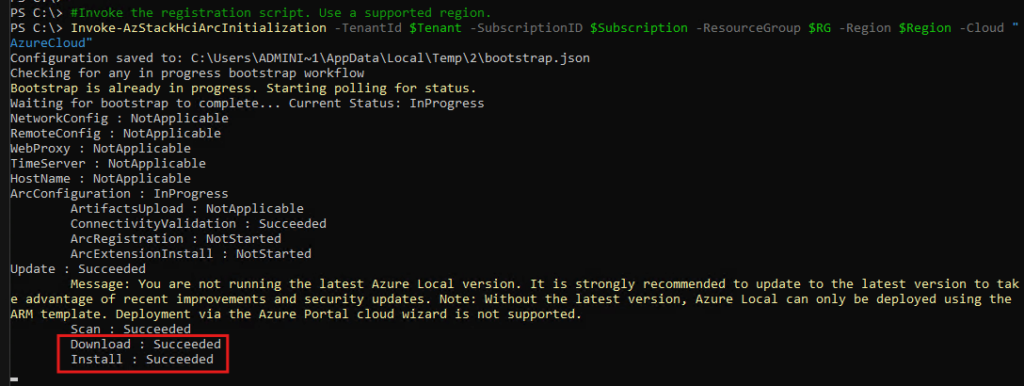
Monitoring and Completing the Registration
Sometimes, things like timeouts or reboots can interrupt the flow, but monitoring and resuming is straightforward. Here’s how to handle it:
- Check Registration Progress: If the registration times out or your machine reboots, reconnect and use these PowerShell commands to check the status:PowerShell
$status = Get-ArcBootstrapStatus $status.Response.Status - Interpret the Status:
- If it’s Succeeded, great! The registration finished successfully post-update.
- If it’s Failed, you’ll need to rerun the registration. Grab a fresh ARM token or use the device code flow to try again.
- Persistent issues? Run Collect-ArcBootstrapSupportLogs to gather logs and share them with support for deeper troubleshooting.
- Resume After Reboot: Once the system reboots, simply rerun the Invoke-AzStackHciArcInitialization cmdlet to pick up where you left off and complete the process.
This approach keeps things efficient and minimizes downtime, making sure your Azure Arc setup is robust and up-to-date.
Why This Matters
Dealing with outdated OS images proactively during registration prevents bigger headaches down the line, like compatibility issues or security vulnerabilities. By following these steps, you can ensure a seamless integration with Azure services.
As ever, check out the official documentation for further details:
Handle preinstalled or outdated OS images during Azure Arc registration
Post Disclaimer
The information contained in the posts in this blog site is for general information purposes only. The information in this post "Handling Preinstalled or Outdated OS Images During Azure Arc Registration" is provided by "Lee Harrison's Technical Blog" and whilst we endeavour to keep the information up to date and correct, we make no representations or warranties of any kind, express or implied, about the completeness, accuracy, reliability, suitability or availability with respect to the website or the information, products, services, or related graphics contained on the post for any purpose. Furthermore, it is always recommended that you test any related changes to your environments on non-production systems and always have a robust backup strategy in place.