If you manage Azure Local clusters (or any Windows Failover Cluster with Hyper-V and Cluster Shared Volumes), you’ve probably noticed that CSV ownership doesn’t always stay perfectly balanced after maintenance, patching, or node reboots. One node can end up owning multiple volumes while others sit idle. This creates unnecessary I/O coordination overhead and can quietly throttle performance.
That’s exactly why I wrote Set-CsvBalancedOwnership.ps1 — a simple, safe, and fully logged PowerShell function that automatically aligns every CSV to a different cluster node in round-robin fashion.
What the Script Does
The function:
- Connects to your specified cluster
- Retrieves all active nodes and all Cluster Shared Volumes (skipping the hidden Infrastructure_1 volume)
- Records the BEFORE ownership state
- Moves each CSV to its “ideal” node using a simple sequential assignment:
- CSV 1 → Node 1
- CSV 2 → Node 2
- CSV 3 → Node 1 (wraps around)
- And so on
- Only moves volumes that are not already correctly owned
- Logs everything to a UTF-8 timestamped log file
- Shows a beautiful color-coded console summary (green = perfect, yellow = moving, cyan = final state)
- Reports exactly how many CSVs were moved vs. already aligned
It was specifically designed for the common Azure Local pattern of one CSV per node, but it should also work even if you have more volumes than nodes (please test for yourself).
Why Balanced CSV Ownership Matters in Azure Local
In a hyper-converged setup, the CSV owner node handles:
- Metadata operations
- Redirected I/O (when another node needs to write)
- Coordination with Storage Spaces Direct
When ownership is unbalanced, a single node can become a bottleneck even if CPU/memory/network look fine. Microsoft’s own guidance and the Azure Local Health Service recommend even distribution. This script enforces that distribution in seconds.
How to Use It
- Download the script (or copy the code below) and save it as Set-CsvBalancedOwnership.ps1.
- Dot-source it into your PowerShell session (recommended way):PowerShell
PS C:\> . .\Set-CsvBalancedOwnership.ps1 - Run it against your cluster:PowerShell
Set-CsvBalancedOwnership -Cluster "hci-c01"Or specify a custom log location:PowerShellSet-CsvBalancedOwnership -Cluster "hci-c01" -LogPath "C:\HCI\Logs"
That’s it. The script is completely non-destructive — it only moves ownership, never touches data.
Screen shot examples:
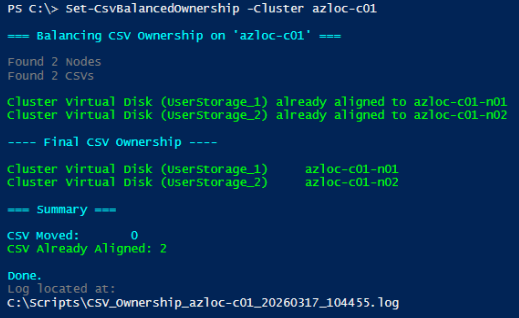
Example 1: UserStorage_1 & UserStorage_2 are already balanced over the nodes:

The script detects the CSVs are balanced and does not need to move them:
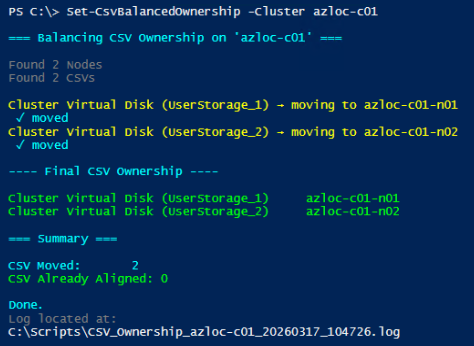
Example 2: UserStorage_1 & UserStorage_2 are on the wrong node and not balanced

The script detects the CSVs are NOT balanced and moves them to the correct node:
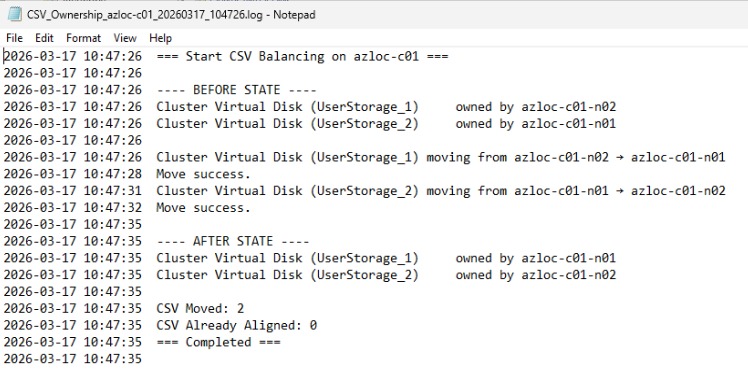
The log file records the actions:
Full Script (Ready to Copy)
PowerShell
<#
.SYNOPSIS
    Aligns Cluster Shared Volume ownership sequentially across cluster nodes.
.DESCRIPTION
    Dynamically retrieves all nodes and CSVs and assigns CSV ownership sequentially.
    Logs BEFORE + AFTER state to a UTF-8 encoded log file.
    Console output is color-coded and shows final ownership after all moves.
    Created for clusters with 1 x CSV per Node (should work with multiple volumes).
.NOTES
    Dot source the script first: . .\Set-CsvBalancedOwnership.ps1
#>
function Set-CsvBalancedOwnership {
    param(
        [Parameter(Mandatory=$true)][string]$Cluster,
        [string]$LogPath
    )

    # Log path handling
    if (-not $LogPath) {
        $LogPath = if ($PSScriptRoot) { $PSScriptRoot } else { Get-Location }
    }
    if (-not (Test-Path $LogPath)) { New-Item -ItemType Directory -Path $LogPath | Out-Null }
    $Timestamp = Get-Date -Format "yyyyMMdd_HHmmss"
    $LogFile = Join-Path $LogPath "CSV_Ownership_$Cluster`_$Timestamp.log"

    function Write-Log { param([string]$Message)
        $Time = (Get-Date).ToString("yyyy-MM-dd HH:mm:ss")
        "$Time $Message" | Out-File -FilePath $LogFile -Encoding utf8 -Append
    }

    Write-Host "`n=== Balancing CSV Ownership on '$Cluster' ===`n" -ForegroundColor Cyan
    Write-Log "=== Start CSV Balancing on $Cluster ==="

    $Nodes = Get-ClusterNode -Cluster $Cluster | Sort-Object Name
    $CSVs  = Get-ClusterSharedVolume -Cluster $Cluster |
             Where-Object { $_.Name -notlike '*Infrastructure_1*' } |
             Sort-Object Name

    # BEFORE STATE
    Write-Log "---- BEFORE STATE ----"
    foreach ($CSV in $CSVs) { Write-Log ("{0,-40} owned by {1}" -f $CSV.Name, $CSV.OwnerNode) }

    Write-Host "Found $($Nodes.Count) Nodes" -ForegroundColor DarkGray
    Write-Host "Found $($CSVs.Count) CSVs`n" -ForegroundColor DarkGray

    $MovedCount = 0; $AlignedCount = 0

    # Balance loop
    for ($i = 0; $i -lt $CSVs.Count; $i++) {
        $CSV = $CSVs[$i]
        $TargetNode = $Nodes[$i % $Nodes.Count]
        $CurrentOwner = $CSV.OwnerNode

        if ($CurrentOwner -eq $TargetNode.Name) {
            Write-Host ("{0} already aligned to {1}" -f $CSV.Name, $TargetNode.Name) -ForegroundColor Green
            $AlignedCount++
            continue
        }

        Write-Host ("{0} → moving to {1}" -f $CSV.Name, $TargetNode.Name) -ForegroundColor Yellow
        Write-Log "$($CSV.Name) moving from $CurrentOwner → $($TargetNode.Name)"

        try {
            Move-ClusterSharedVolume -Cluster $Cluster -Name $CSV.Name -Node $TargetNode.Name -ErrorAction Stop | Out-Null
            Write-Host " ✓ moved" -ForegroundColor Cyan
            Write-Log "Move success."
            $MovedCount++
            Start-Sleep 3
        }
        catch {
            Write-Host (" !! ERROR moving {0}" -f $CSV.Name) -ForegroundColor Red
            Write-Log "ERROR: failed to move $($CSV.Name)"
            Write-Log $_
        }
    }

    # AFTER STATE
    Write-Host "`n---- Final CSV Ownership ----`n" -ForegroundColor Cyan
    Write-Log "---- AFTER STATE ----"
    foreach ($CSV in $CSVs) {
        $UpdatedOwner = (Get-ClusterSharedVolume -Cluster $Cluster -Name $CSV.Name).OwnerNode
        $ExpectedNode = $Nodes[($CSVs.IndexOf($CSV) % $Nodes.Count)].Name
        $Color = if ($UpdatedOwner -eq $ExpectedNode) { 'Green' } else { 'Red' }
        Write-Host ("{0,-40} {1}" -f $CSV.Name, $UpdatedOwner) -ForegroundColor $Color
        Write-Log ("{0,-40} owned by {1}" -f $CSV.Name, $UpdatedOwner)
    }

    # Summary
    Write-Host "`n=== Summary ===`n" -ForegroundColor Cyan
    Write-Host "CSV Moved: $MovedCount" -ForegroundColor Cyan
    Write-Host "CSV Already Aligned: $AlignedCount" -ForegroundColor Green
    Write-Log "CSV Moved: $MovedCount"
    Write-Log "CSV Already Aligned: $AlignedCount"
    Write-Log "=== Completed ==="

    Write-Host "`nDone." -ForegroundColor Cyan
    Write-Host "Log located at: $LogFile`n" -ForegroundColor DarkGray
}
Real-World Use Cases on Azure Local
- After patching or reboots (ownership often drifts)
- When adding new nodes or new volumes
- Before performance testing or load-balancing validation
- As part of your monthly maintenance runbook
Final Thoughts
Balanced CSV ownership is one of those “set it and forget it” optimizations that can pay dividends every single day. With this script, you can achieve perfect alignment in under a minute and have a full audit trail.
You could even run the script regularly on a scheduled task to automatically ensure your CSVs are always balanced.
I hope you find this useful and let me know if you have any feedback or comments.
Post Disclaimer
The information contained in the posts in this blog site is for general information purposes only. The information in this post "Balancing Cluster Shared Volume Ownership in Azure Local clusters with a PowerShell Script" is provided by "Lee Harrison's Technical Blog" and whilst we endeavour to keep the information up to date and correct, we make no representations or warranties of any kind, express or implied, about the completeness, accuracy, reliability, suitability or availability with respect to the website or the information, products, services, or related graphics contained on the post for any purpose. Furthermore, it is always recommended that you test any related changes to your environments on non-production systems and always have a robust backup strategy in place.